Frame
Frame
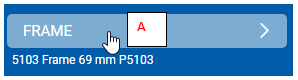
By clicking on menu “Frame” (A) – the pop up will appear where you can choose settings for the whole element.
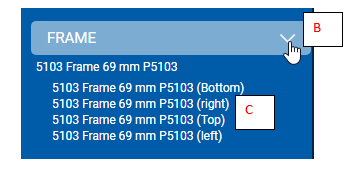
If you click on the arrow symbol (B), the additional options menu will appear (C), allowing you to define individual frame features for each part of the element (bottom, right, top, left).
Frame menu
Frame – separate parts
Clicking Frame menu
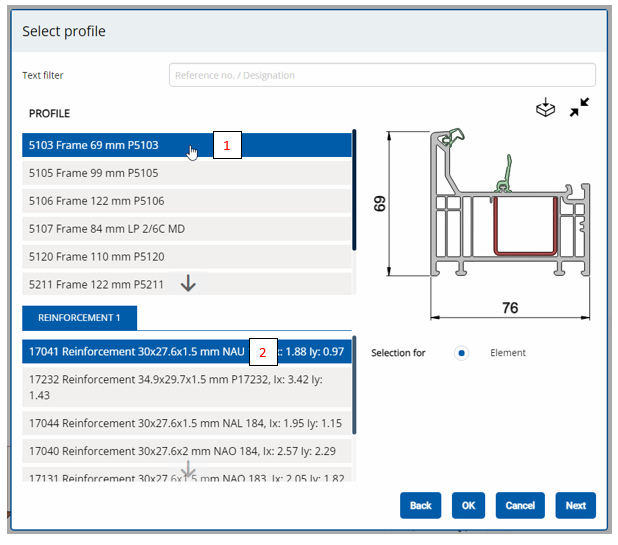
After clicking on “FRAME” menu, the pop up will appear, where you can define from the library the frame profile (1), and the reinforcement (2).
After defining frame feauters, click OK and go to left side blue menu, to next section: SASHES.
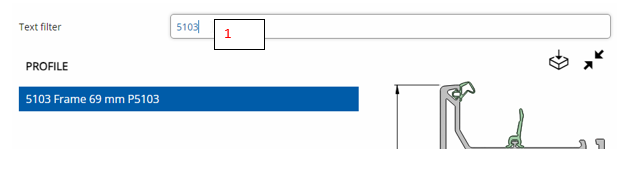
TIP 1: if you know the product number or the naming of the profile, instead of scrolling through the list in the library, you can use the search option in “Text filter” (1)
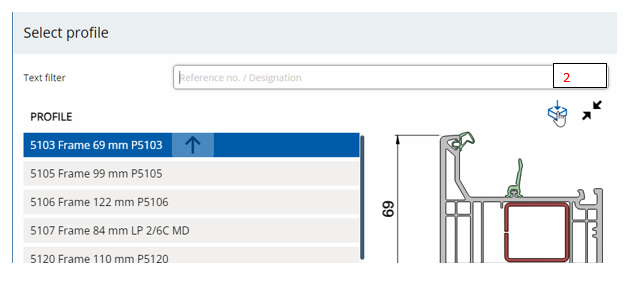
TIP 2: You can download the technical drawing of your defined element by clicking the download button. (2).
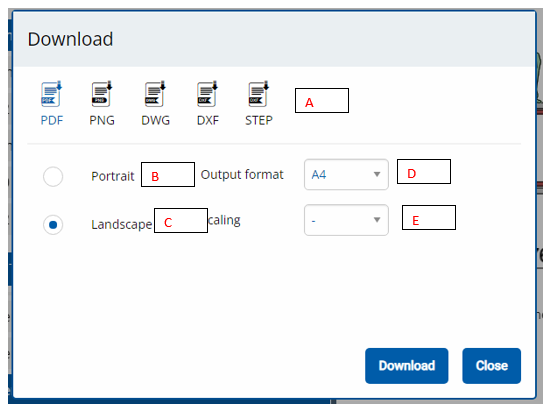
You can select desired file type (A) and format: portrait or landscape orientation (B), (C), and define the size of chosen orientation (D), (E).
Download
After clicking “Download” button, the defined file will be faved in your download folder.
Frame separate parts
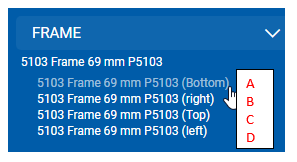
Here you can select individual options for each of 4 frames (Bottom (A) / right (B) / Top (C) / left (D)).
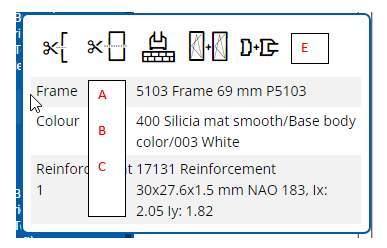
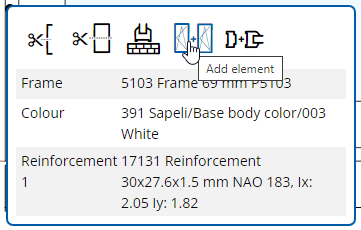
After clicking on selected option, the below pop up menu appears. I allows you to select Frame (A), Colour of the profile (B) and Reinforcement (C) for the individualy chosen side profile (the same library as described earlier), and also preview cross section, wall connection or accessory profiles, as well as allows you to add another elements to your construction (E)
TIP 1: You can also select above menu at any time, by clicking on the frame at the drawing on the right side of the screen:
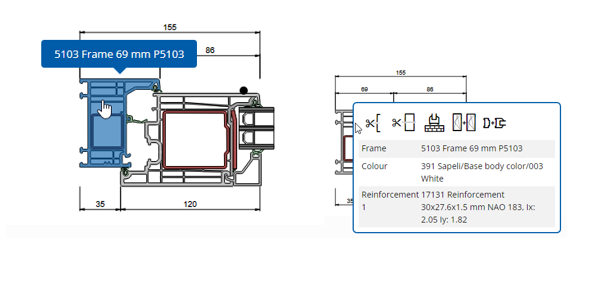
Frame profiles pop up menu
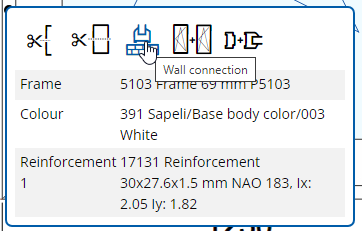
Below menu provides below options:
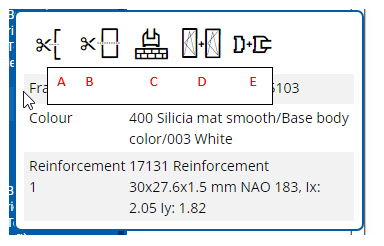
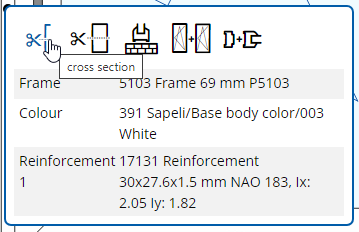
By clicking on this option, the pop up appears with the cross section drawing of the defined element.
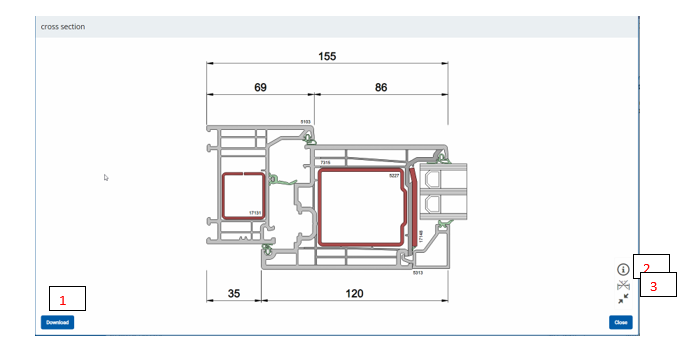
You can:
1. Download it.
2. Display the system information.
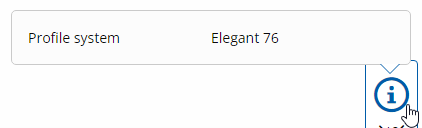
3. Hide the dimensions on the drawing.
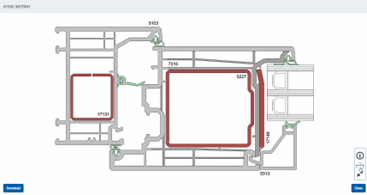
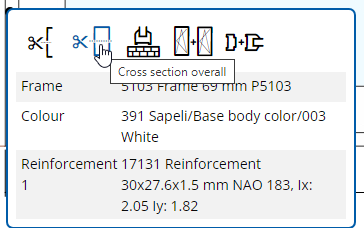
By clicking on this option, the pop up menu will display the overall cross section.
TIP:
Depending on, if you open above pop up menu by clicking first on left or right frame and then on the cross section overall button - the pop up will present you Left + right cross sections (1); if you click top or bottom frame and chose cross section overall button, the pop up will present you top + bottom cross sections (2).
(1)
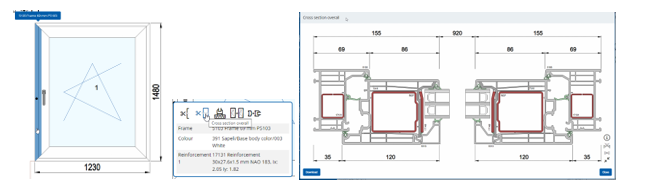
(2)
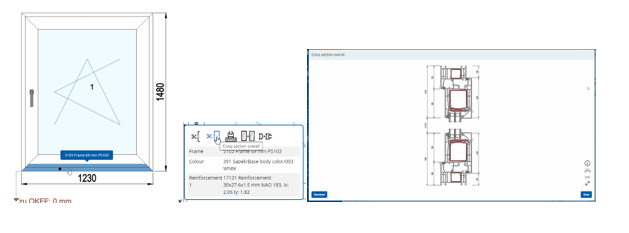
TIP 2
The pop up presenting chosen cross section overall provides options:
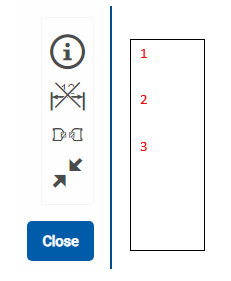
1. Information about the system
2. Hiding the dimensions on the drawing
3. Displaying the 1:1 Proportional cross section overall (horizontal or vertical, depending on chosen option):


…………TBD
…………TBD
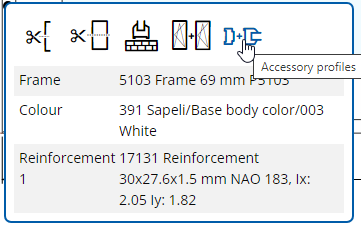
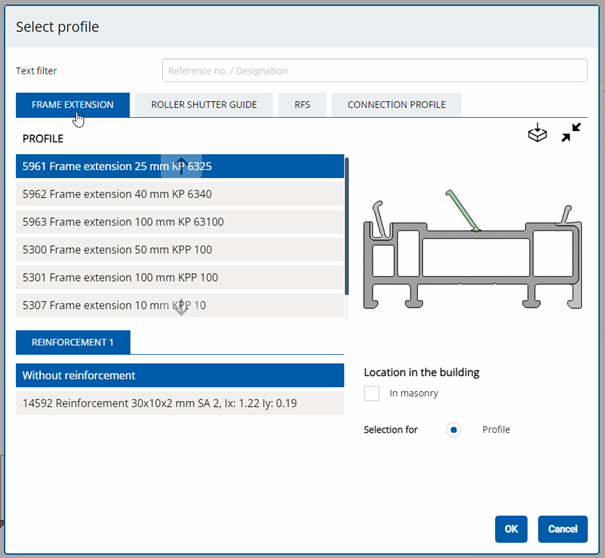
By clicking this option, the pop up menu will appear with the below options:
….TBD